

- Maps your branch key to the KRA branch
- Initializes the eTIMS device with KRA
- Activates the connection
Provision in the dashboard (recommended)
- Open the company in the dashboard.
- On the eTIMS card, enter the KRA details and click Provision.
- Wait for the status to show Connected.
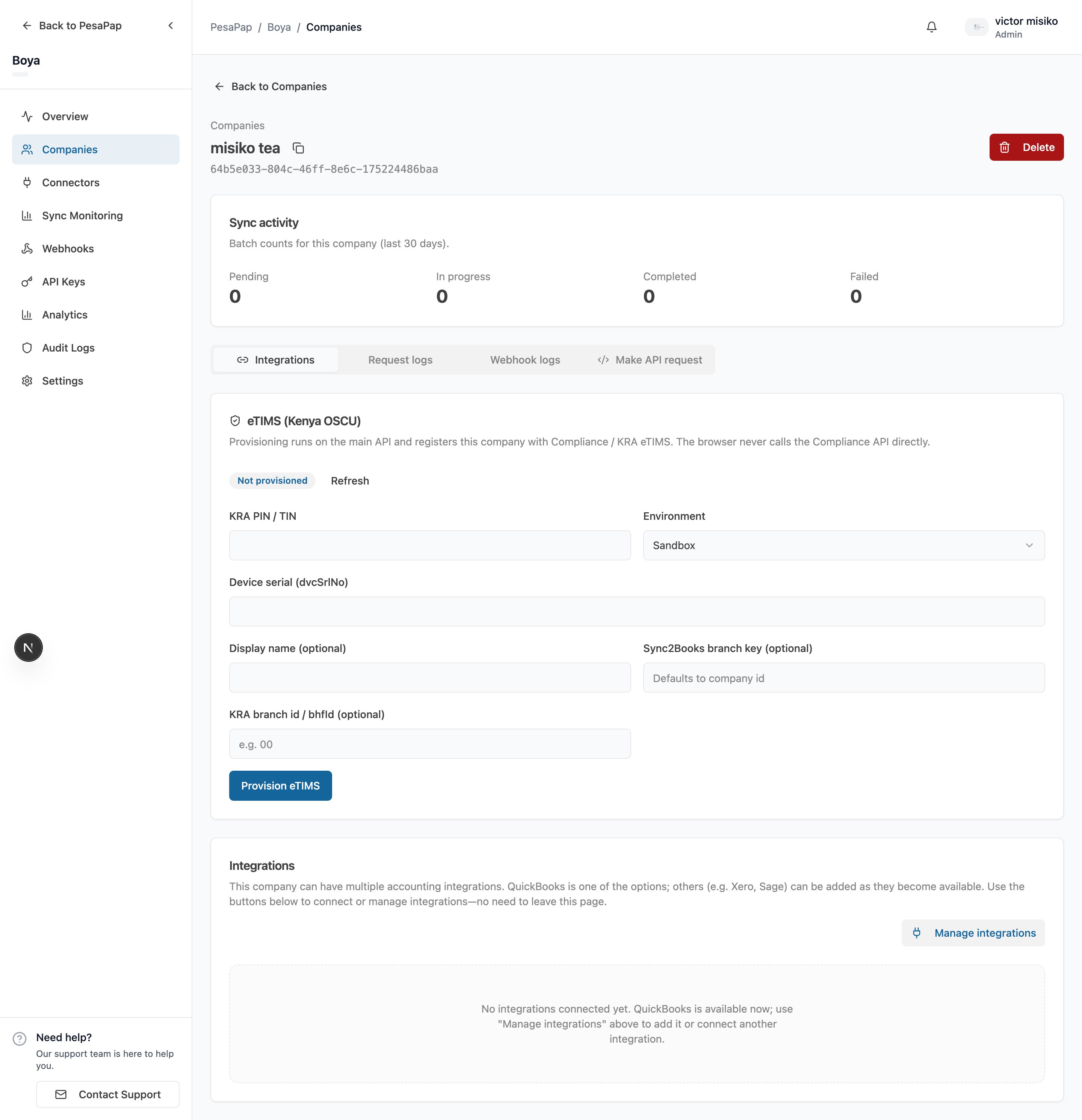
HQ) you’ll use in API calls.
Where the credentials come from
The values you enter are issued by KRA during that business’s OSCU onboarding, not by Sync2Books:
For the full KRA-side process (certification, Integration Token, device initialization, sandbox vs production), see eTIMS as a Third-Party Integrator (OSCU).
branchId vs kraBhfId — don’t mix them up
Two different identifiers:- Branch key (
sync2booksBranchKey/branchId, e.g.HQ) — the logical branch key you choose. This is what you pass asbranchIdin catalog sync, sales, and stock API calls. kraBhfId(e.g.00) — KRA’s internal branch office ID. Provided once at provision time; you do not use it in operational API calls.
Check provisioning status
You can see a company’s eTIMS status in the dashboard, or fetch it programmatically (JWT-authenticated, application-scoped):status is none when the company has never been provisioned, otherwise the connection status (e.g. connected, pending).
Advanced: provision via API
If you’re onboarding many companies programmatically (e.g. a bulk migration, or your own onboarding wizard), there’s an API-key endpoint that does exactly what the dashboard does. Most integrations won’t need this.Request body
Response
Idempotency & re-provisioning
- Provisioning an already-connected company returns
409 Conflict— it does not silently re-initialize. - Treat provision as a one-time setup per company/branch. To change KRA details, follow your re-onboarding process rather than blindly re-provisioning.
Common errors
Read next
- Catalog — register and sync the items you’ll sell (API)
- API Reference → Provision — full field reference