> ## Documentation Index
> Fetch the complete documentation index at: https://docs.sync2books.com/llms.txt
> Use this file to discover all available pages before exploring further.
# Set up the Odoo integration
> Learn how to connect a company to a merchant's own Odoo instance.
Learn how to connect a company to a merchant's own Odoo instance.
Odoo has no OAuth redirect. Instead of sending the merchant to an authorization page, your application collects four fields directly (either via the [Link component](/link-integration) or your own form) and Sync2Books validates them synchronously against the merchant's Odoo server.
## Prerequisites
* ✅ **Sync2Books account** — An active Sync2Books account with the Odoo integration enabled for your application
* ✅ **A running Odoo instance** — Self-hosted, Odoo.sh, or Odoo Online. Sync2Books doesn't provision one for you
* ✅ **Network reachability** — Sync2Books' servers must be able to reach the merchant's Odoo `url` over HTTPS. If Odoo sits behind a firewall or VPN with no public ingress, the merchant needs to allowlist Sync2Books' egress IPs first
## What the merchant needs to provide
| Field | What it is |
| ---------- | ------------------------------------------------------------- |
| `url` | The Odoo server's address, e.g. `https://my-company.odoo.com` |
| `database` | Which database on that server — see below |
| `username` | Their normal Odoo login email |
| `apiKey` | A revocable API credential — **not** their login password |
### Finding the database name
* **Odoo Online (odoo.com)**: the database name is almost always the subdomain chosen at signup — `my-company.odoo.com` → database `my-company`.
* **Self-hosted / Odoo.sh**: visit `/web/database/selector` to list all databases on that server. If there's only one, Odoo may skip straight to login — the merchant's Odoo admin can find it in `odoo.conf`'s `db_name` line. This is also the screen where the database name is *chosen*, the first time a self-hosted instance is set up: 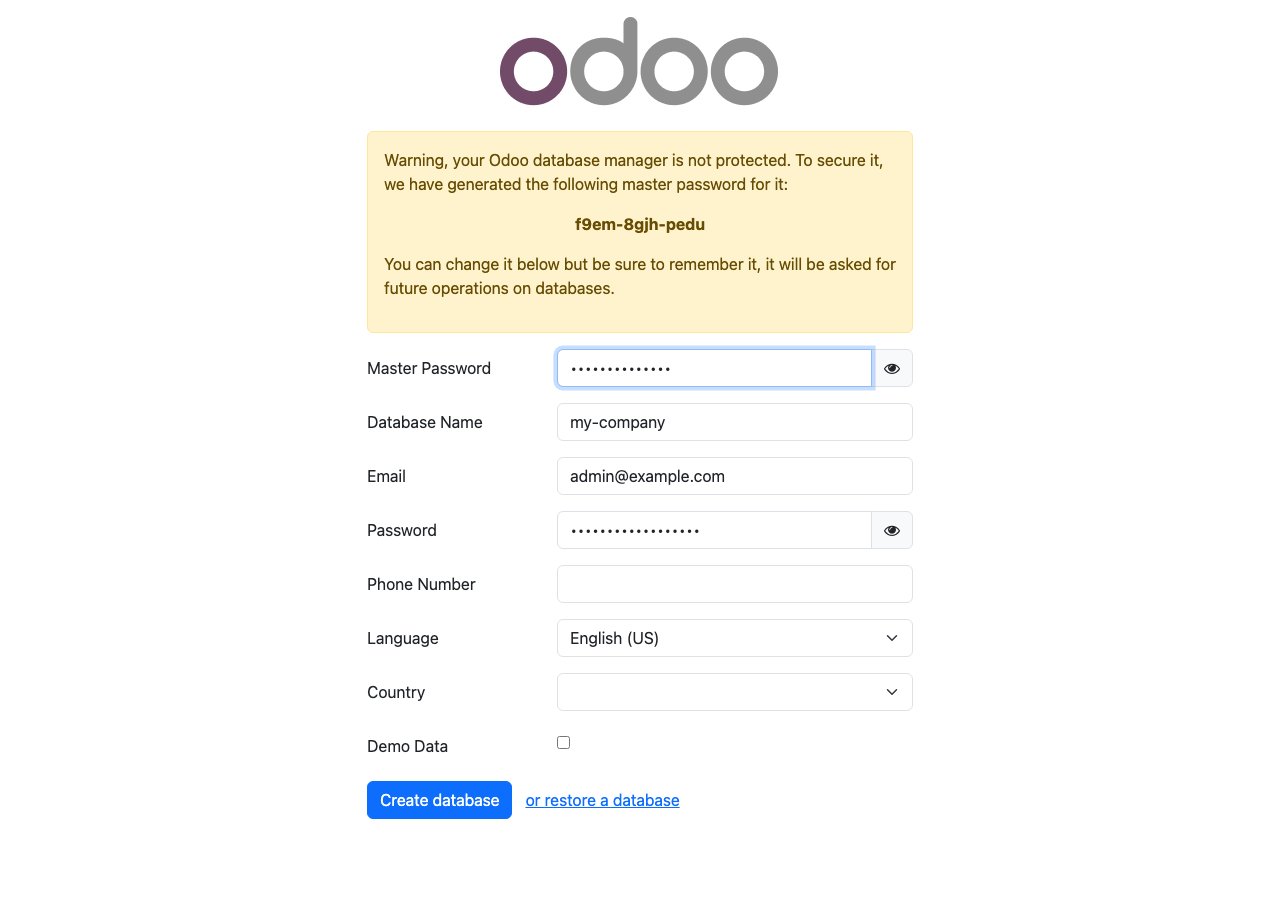 ### Generating an API key
This is self-service inside Odoo — no admin/IT involvement needed once the merchant is logged in.
Click the profile icon (top-right) → **Preferences**.
### Generating an API key
This is self-service inside Odoo — no admin/IT involvement needed once the merchant is logged in.
Click the profile icon (top-right) → **Preferences**. 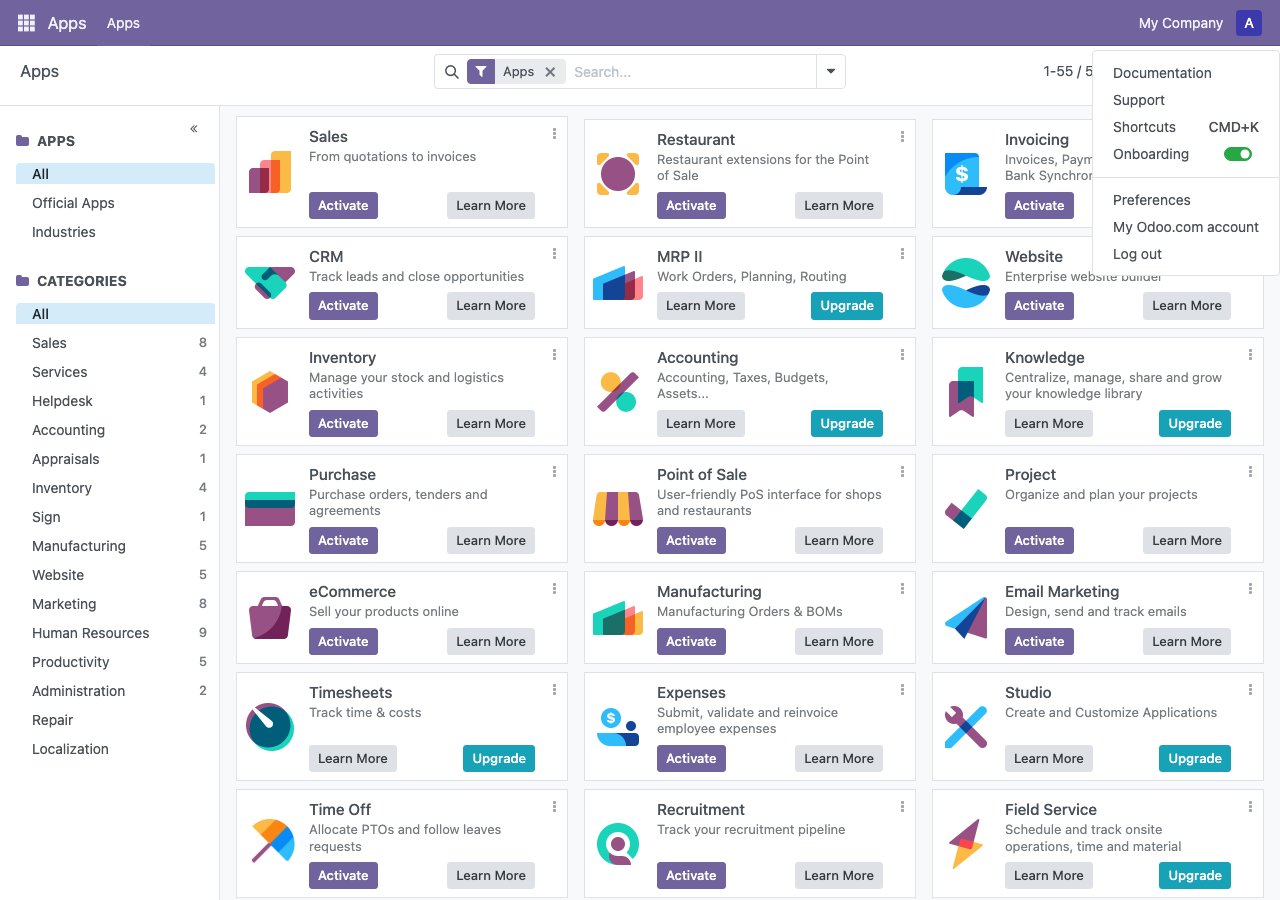
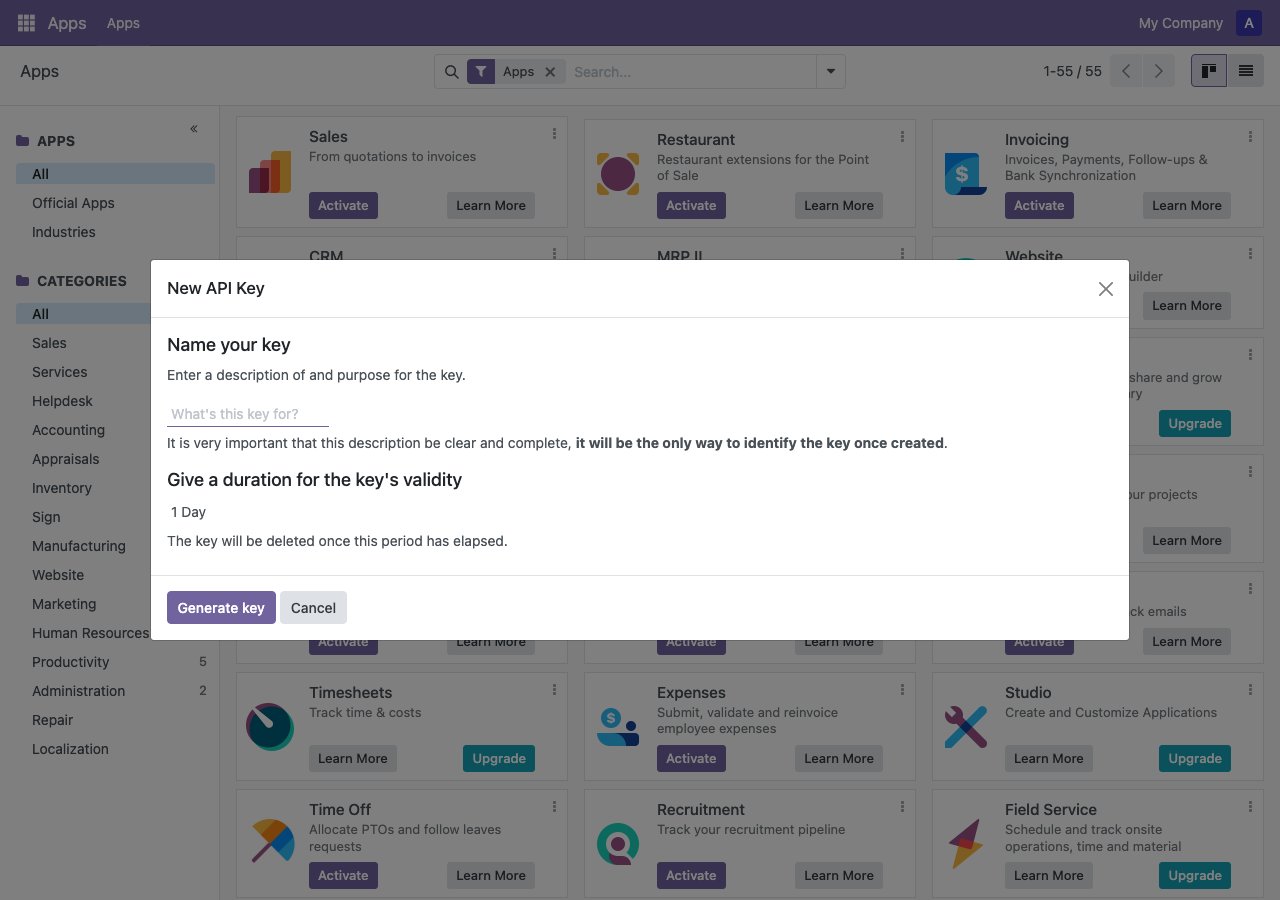
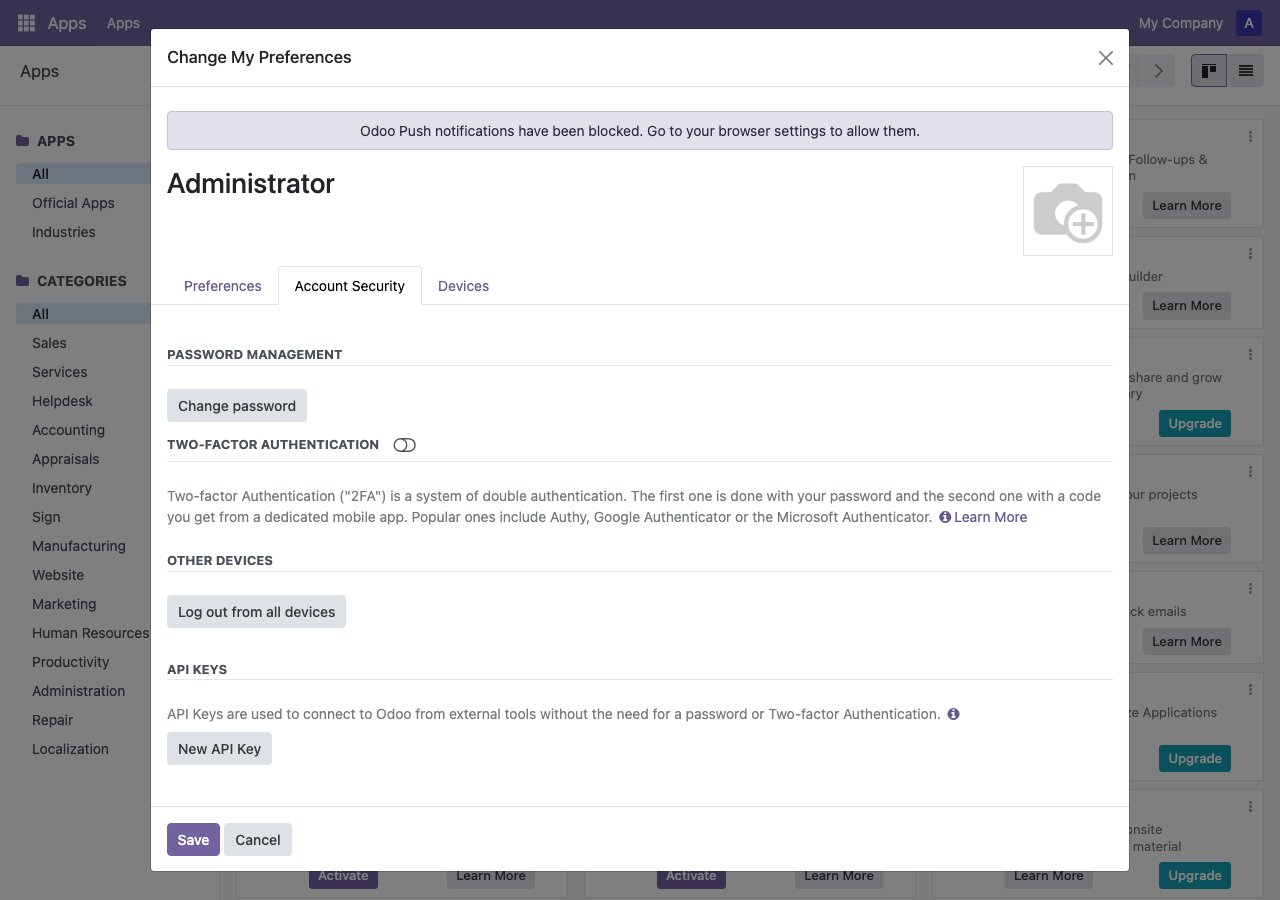 Odoo re-asks for the password before generating a key — this is expected.
 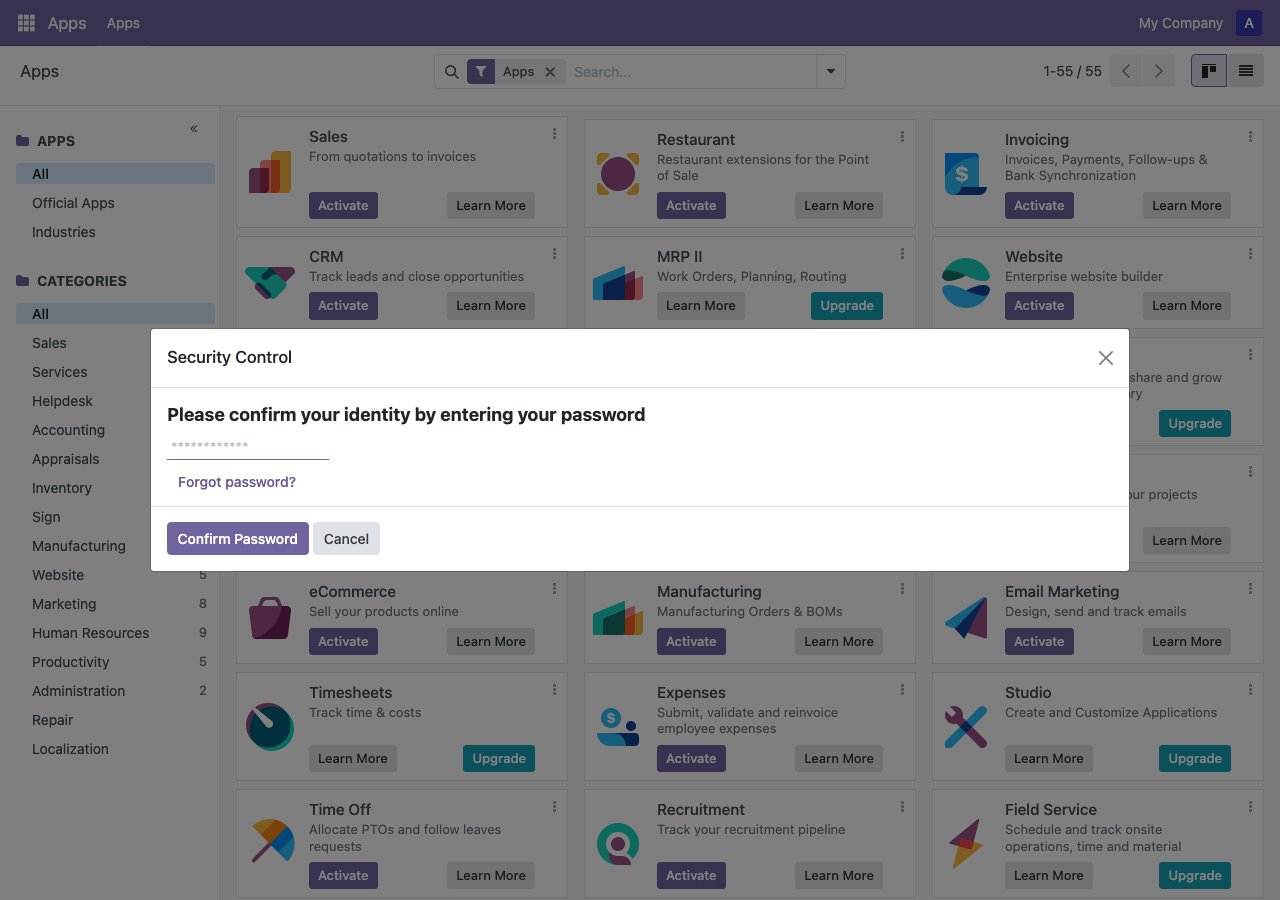 The validity duration defaults to **1 Day**. If the merchant clicks "Generate key" without changing this, the key — and the Sync2Books connection — silently stops working the next day. Pick a long duration, or "No expiration" if offered.
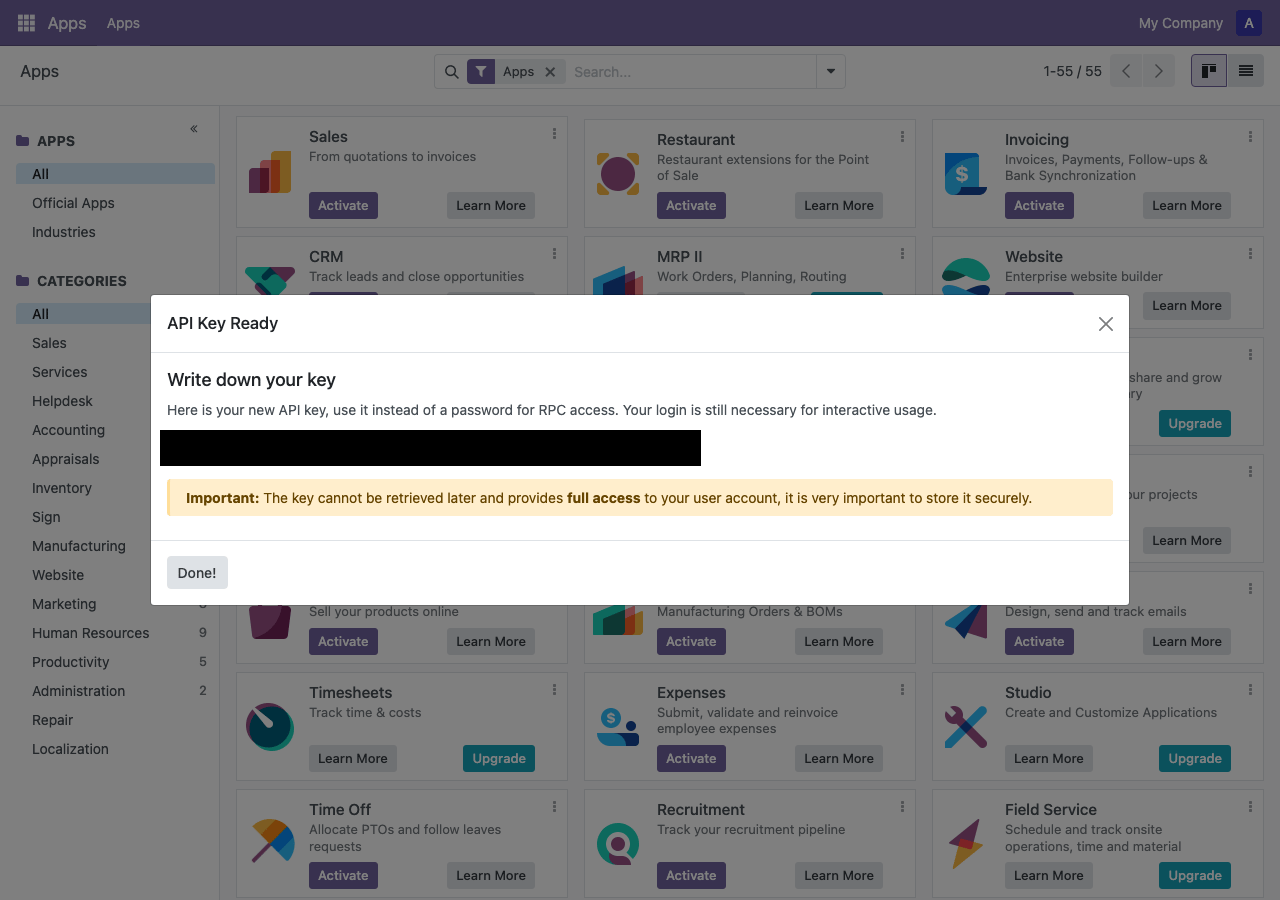
 Odoo shows the key exactly once. If the dialog is closed without copying it, there's no way to view it again — the merchant would have to delete the key and generate a new one.
  ## Connect a company
Once you have all four fields, connect the company directly — no auth-URL / redirect step like the OAuth integrations.
```bash theme={null}
curl -X POST "https://api.sync2books.com/companies/{companyId}/odoo/connect" \
-H "x-api-key: {apiKey}" \
-H "Content-Type: application/json" \
-d '{
"url": "https://my-company.odoo.com",
"database": "my-company",
"username": "admin@example.com",
"apiKey": "{odoo_api_key}"
}'
```
**Response:**
```json theme={null}
{
"id": "connection-uuid",
"integrationKey": "odoo",
"companyId": "company-uuid",
"status": "connected",
"providerMetadata": {
"url": "https://my-company.odoo.com",
"database": "my-company",
"username": "admin@example.com"
}
}
```
A `201` with `status: "connected"` means Sync2Books already validated the credentials against Odoo — there's nothing further for the merchant to do. A `401` means Odoo rejected the credentials (wrong database, expired key, or wrong password re-entry) — see [Odoo FAQs](/integrations/odoo/odoo-faq) for the most common causes.
### Reconnecting
If a merchant's API key expires or is regenerated, call the same endpoint again with an optional `connectionId` to update the existing connection instead of creating a new one:
```bash theme={null}
curl -X POST "https://api.sync2books.com/companies/{companyId}/odoo/connect" \
-H "x-api-key: {apiKey}" \
-H "Content-Type: application/json" \
-d '{
"url": "https://my-company.odoo.com",
"database": "my-company",
"username": "admin@example.com",
"apiKey": "new-api-key-here",
"connectionId": "connection-uuid"
}'
```
## Verify the connection
```bash theme={null}
curl -X GET "https://api.sync2books.com/connections/company/{companyId}/integration/odoo" \
-H "x-api-key: {apiKey}"
```
You should see `integrationKey: "odoo"` and `status: "connected"`.
## Read next
* [Odoo overview](/integrations/odoo/odoo-overview) - Learn about the integration
* [Odoo integration reference](/integrations/odoo/odoo-reference) - API reference
* [Odoo FAQs](/integrations/odoo/odoo-faq) - Common questions
## Connect a company
Once you have all four fields, connect the company directly — no auth-URL / redirect step like the OAuth integrations.
```bash theme={null}
curl -X POST "https://api.sync2books.com/companies/{companyId}/odoo/connect" \
-H "x-api-key: {apiKey}" \
-H "Content-Type: application/json" \
-d '{
"url": "https://my-company.odoo.com",
"database": "my-company",
"username": "admin@example.com",
"apiKey": "{odoo_api_key}"
}'
```
**Response:**
```json theme={null}
{
"id": "connection-uuid",
"integrationKey": "odoo",
"companyId": "company-uuid",
"status": "connected",
"providerMetadata": {
"url": "https://my-company.odoo.com",
"database": "my-company",
"username": "admin@example.com"
}
}
```
A `201` with `status: "connected"` means Sync2Books already validated the credentials against Odoo — there's nothing further for the merchant to do. A `401` means Odoo rejected the credentials (wrong database, expired key, or wrong password re-entry) — see [Odoo FAQs](/integrations/odoo/odoo-faq) for the most common causes.
### Reconnecting
If a merchant's API key expires or is regenerated, call the same endpoint again with an optional `connectionId` to update the existing connection instead of creating a new one:
```bash theme={null}
curl -X POST "https://api.sync2books.com/companies/{companyId}/odoo/connect" \
-H "x-api-key: {apiKey}" \
-H "Content-Type: application/json" \
-d '{
"url": "https://my-company.odoo.com",
"database": "my-company",
"username": "admin@example.com",
"apiKey": "new-api-key-here",
"connectionId": "connection-uuid"
}'
```
## Verify the connection
```bash theme={null}
curl -X GET "https://api.sync2books.com/connections/company/{companyId}/integration/odoo" \
-H "x-api-key: {apiKey}"
```
You should see `integrationKey: "odoo"` and `status: "connected"`.
## Read next
* [Odoo overview](/integrations/odoo/odoo-overview) - Learn about the integration
* [Odoo integration reference](/integrations/odoo/odoo-reference) - API reference
* [Odoo FAQs](/integrations/odoo/odoo-faq) - Common questions